Live demo of the Brand essentials blueprint · Common Ground is a fictional brand.All blueprintsJoin the waitlist
Skip to content
Common Ground
Applications11/12

Chapter 11 of 12

Applications

The brand at work

This is where everything comes together. Use these examples as a reference: they follow all the rules in this guide, and most of them exist as templates you can order or download.

Online

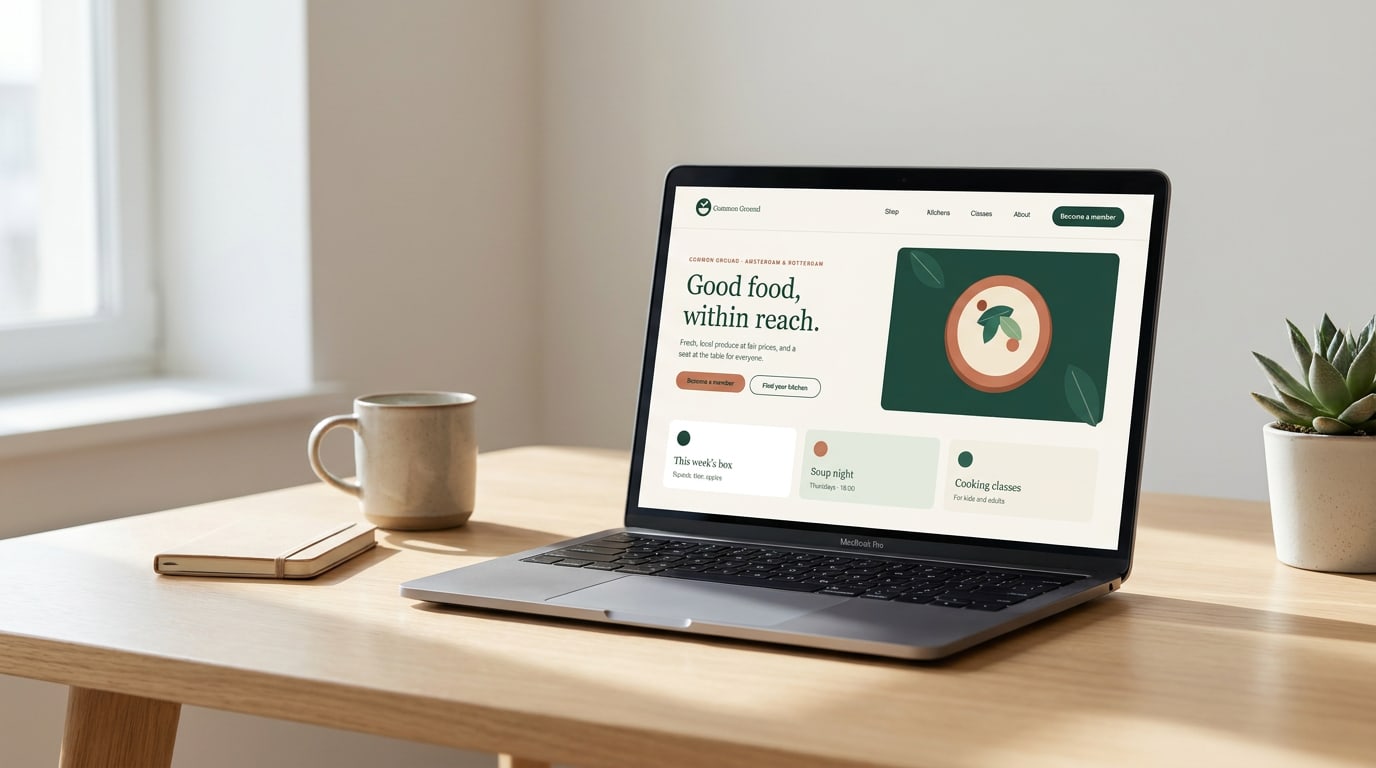
Website

One clear message per screen, one Clay button, real food in the picture.

commonground.example: headline in Newsreader, body in Inter, a 12-column grid with generous margins.

Online

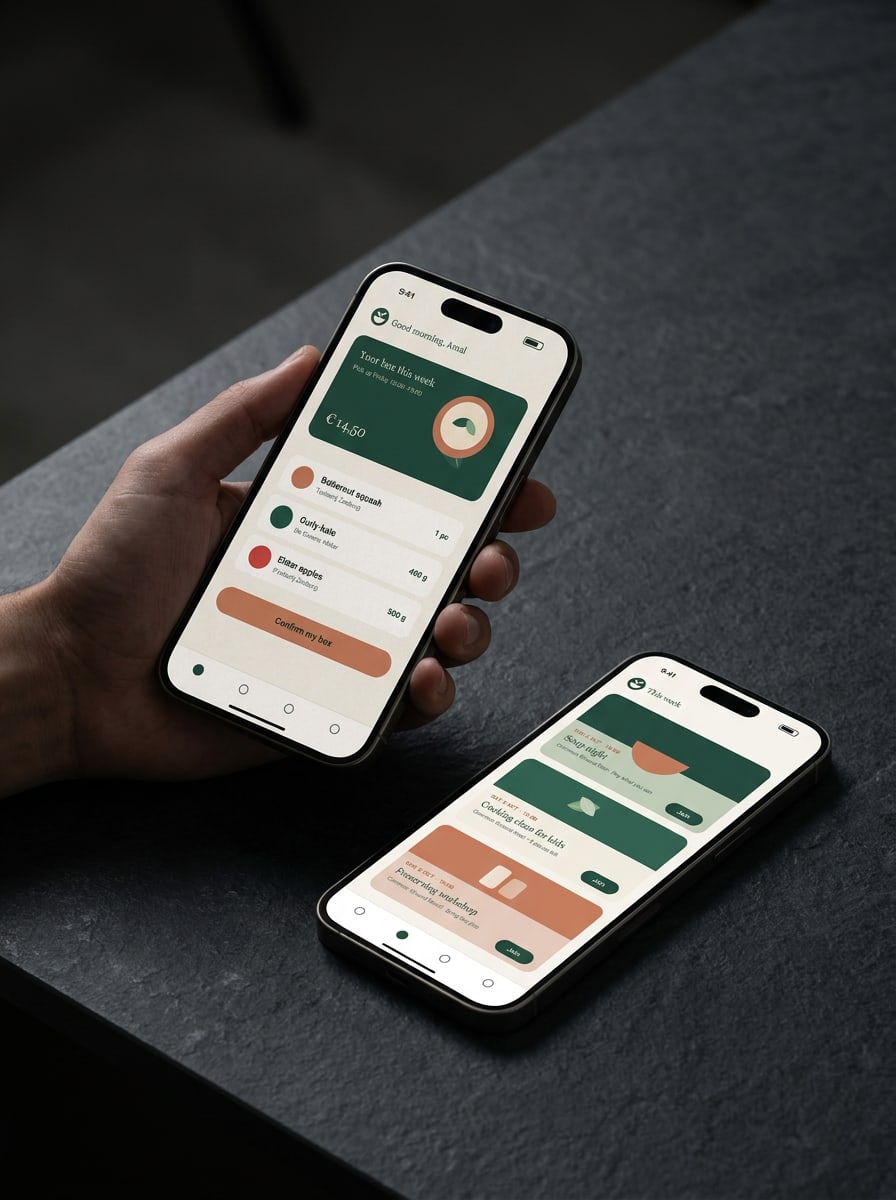
Members' app

Paper carries the content, Forest marks what matters most and Clay is saved for the one action on each screen.

The weekly box and the agenda. Buttons in Clay with Ink text (5.0:1), event cards in Sage, Cream and a light Clay tint.

Social and posters

Posters and posts

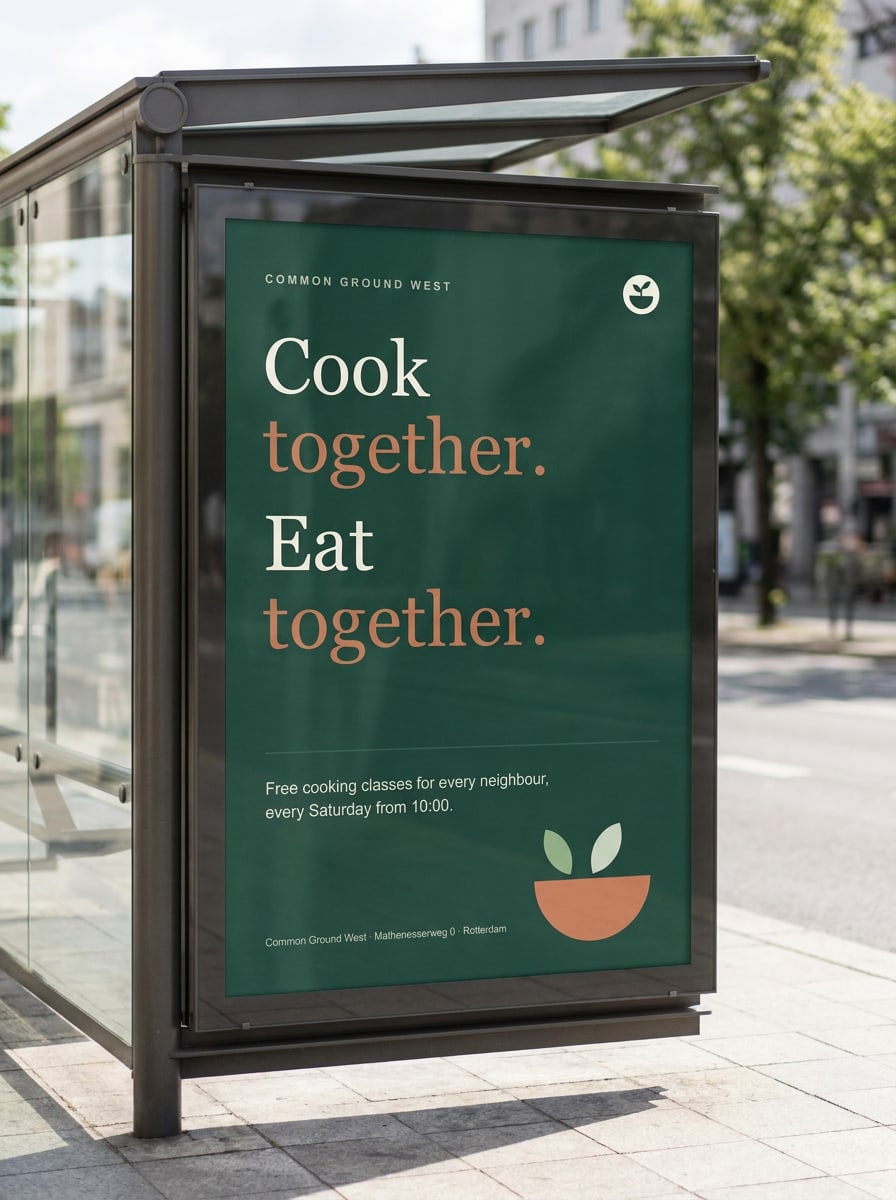
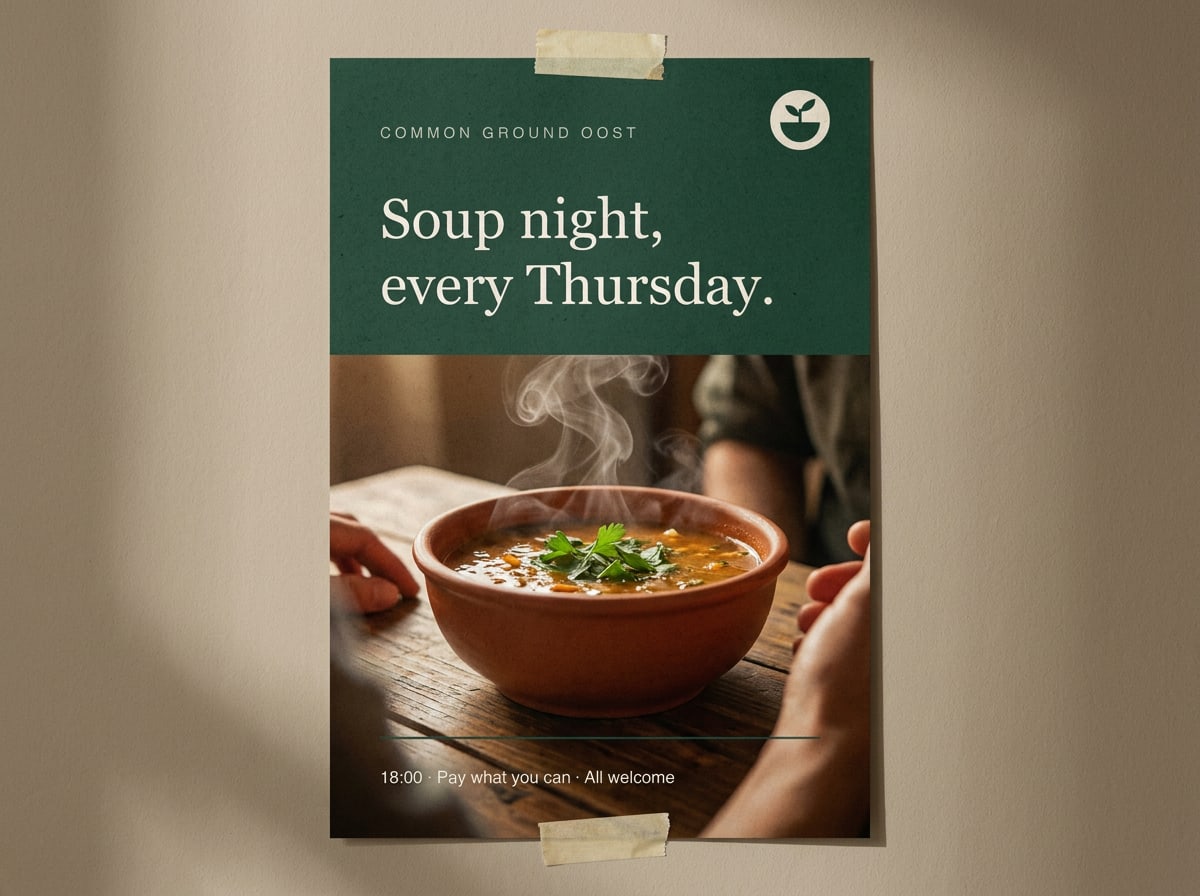
One sentence, one image, the logo. Posters hang in shop windows, libraries and community centres; posts follow the same recipe.

A3 poster for the cooking classes: Display type at full volume, Clay for every second line, details in Inter.
Forest poster for the Thursday soup night with a photo of a bowl of soup
Soup night poster: photo in the lower half, headline on Forest
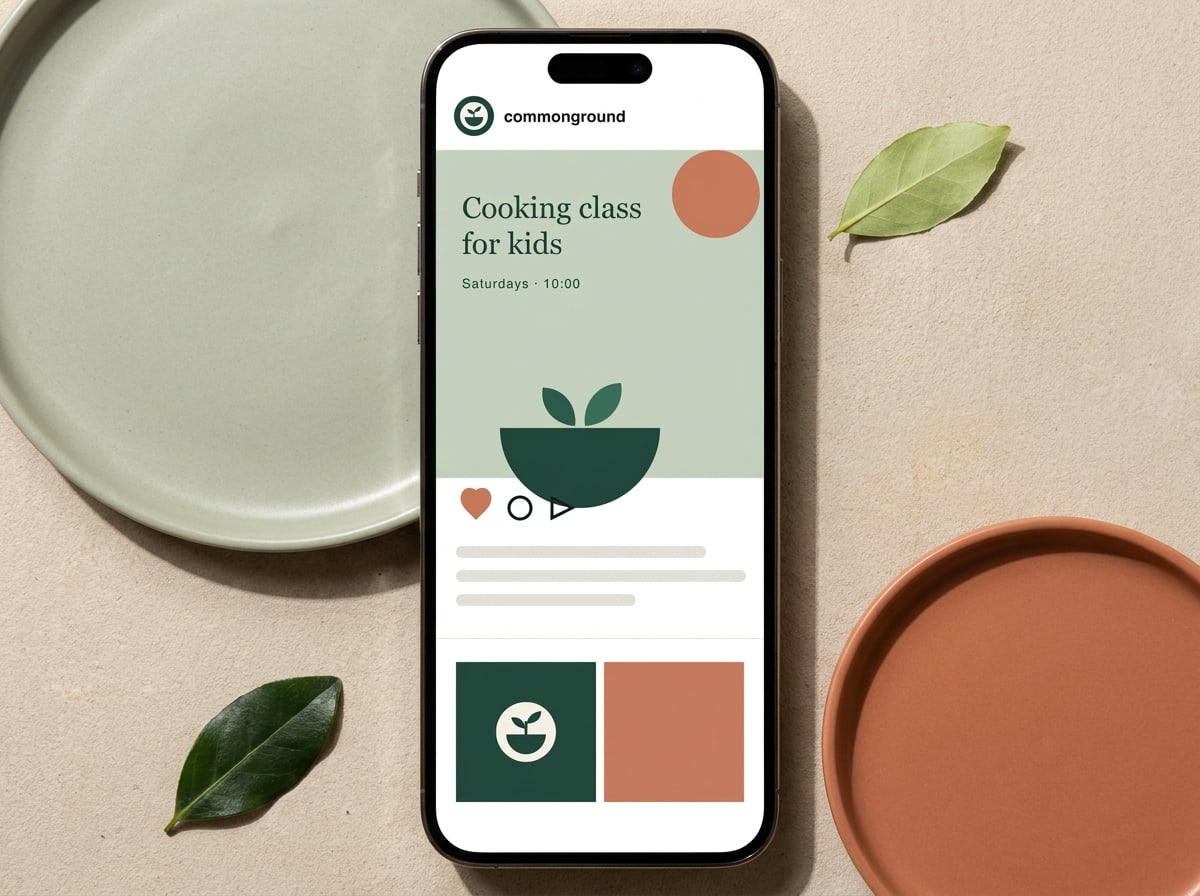
Phone showing an Instagram post about cooking classes for kids
Instagram post, 1080 × 1080 px, on the 6-column social grid

Print

Letters and cards

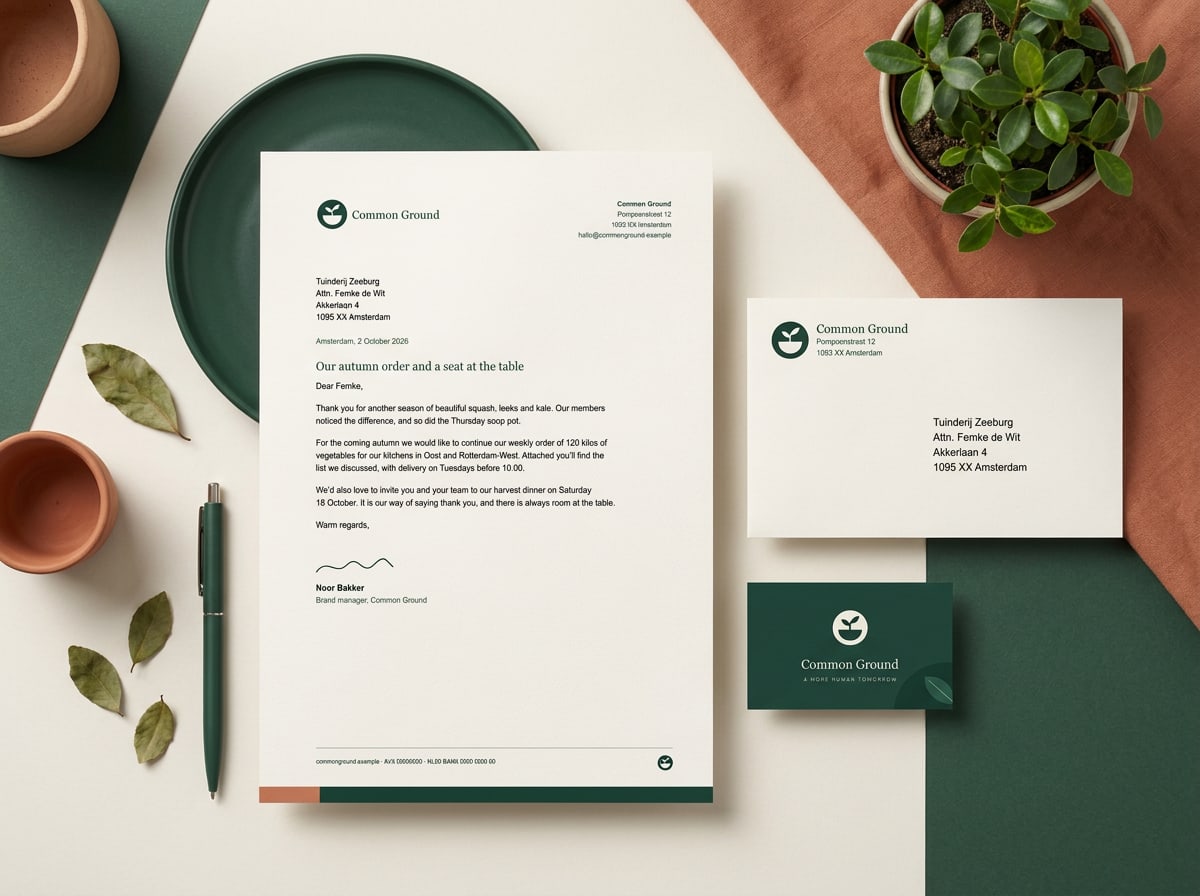
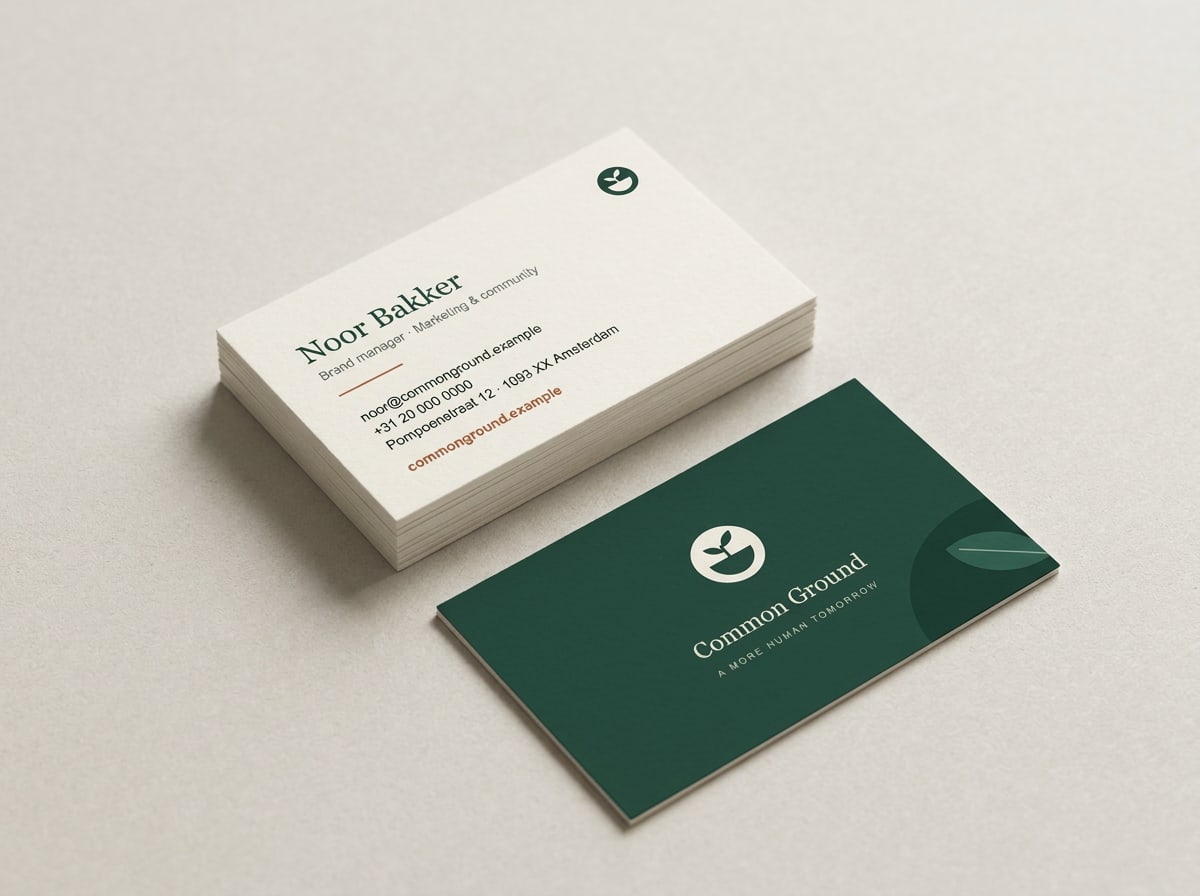
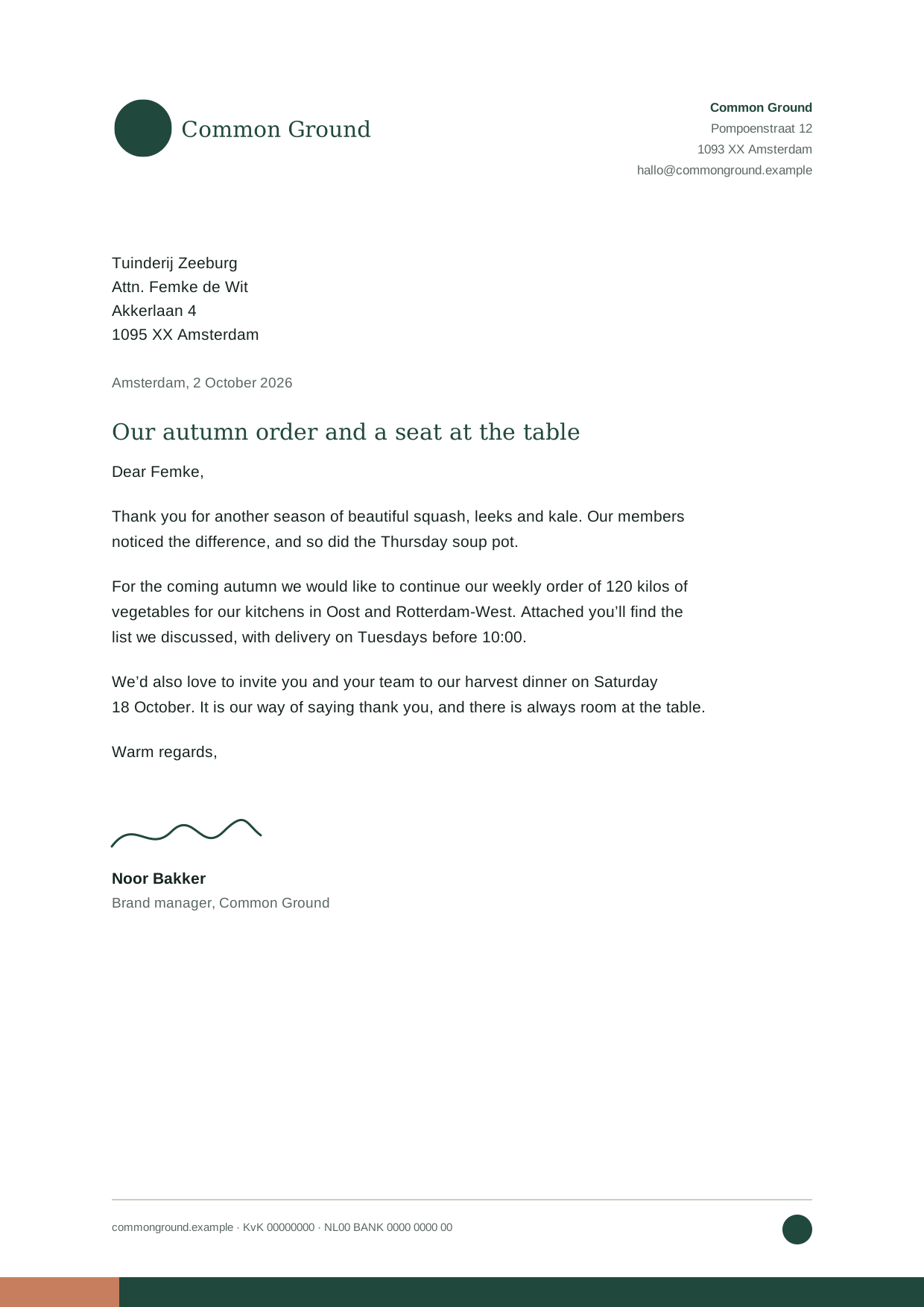
On stationery the logo sits top left at 45 mm, with the address in Inter on the right. Business cards carry the mark and wordmark large on Forest, with contact details on Cream.

A4 letterhead and business card. Letters are set in Inter 10/15 pt, subject line in Newsreader.
Business card, 85 × 55 mm, on 350 g uncoated stock. Front: reversed logo on Forest. Back: Ink and Clay Deep on Cream.

Order

Order business cards and print

Need business cards, letterhead or posters for your kitchen? Fill in the form and the studio prepares a print-ready file and sends it to our printer. Allow five working days.

Handled by the Common Ground design studio
  • Business cards

    250 cards, 350 g uncoated, printed on both sides.
  • Letterhead

    A4, 120 g recycled paper, with your kitchen's address.

  • Poster

    A3 or A2 poster from our templates: soup night, cooking class or open day.

Email

Email signature

Mail programs only show fonts that are already on the reader's device, so our signature uses Georgia. Every volunteer and staff member with a Common Ground address uses it. Fill in your details, copy it and paste it into your mail program.

Bonus
Your own email signature

Set in Georgia with web-safe colours, so it looks the same in Outlook, Gmail and Apple Mail. Leave out fields you don't use.

Your email signature

Your details

Your details are only saved in this browser.
Common Ground
Alex Morgan (she/her)
Senior designer
M +31 6 12 34 56 78
E alex.morgan@example.com
Common Ground
Pompoenstraat 12, 1093 XX Amsterdam
+31 20 000 0000  ·  commonground.example
Instagram  ·  LinkedIn  ·  Word lid / Join
Common Ground is een coöperatie van leden en vrijwilligers. Krijg je deze mail buiten werktijd? Je hoeft niet meteen te antwoorden.
Fill in your name first.

How to add it to your mail program

Outlook for Windows

  1. New Outlook: go to Settings › Account › Signatures. Classic Outlook: File › Options › Mail › Signatures.
  2. Create a new signature and give it a name.
  3. Paste your signature (Ctrl+V) into the editing box.
  4. Choose it as the default for new messages and replies, then save.

Outlook for Mac

  1. Go to Outlook › Settings › Signatures.
  2. Click + to add a signature and give it a name.
  3. Paste your signature (⌘V) and close the editing window to save it.
  4. Under “Choose default signature”, select it for your account.

Outlook on the web (Outlook.com, Microsoft 365)

  1. Click the gear icon › Account › Signatures.
  2. Add a new signature and give it a name.
  3. Paste your signature (Ctrl+V or ⌘V) and click Save.
  4. Select it as the default for new messages and replies.

Gmail

  1. Click the gear icon › See all settings, and stay on the General tab.
  2. Scroll to Signature and click Create new.
  3. Paste your signature into the box.
  4. Choose it under Signature defaults, then click Save Changes at the bottom of the page.

Apple Mail

  1. Go to Mail › Settings › Signatures and select your account.
  2. Click + to add a signature.
  3. Untick “Always match my default message font”, otherwise your fonts and colours are replaced.
  4. Paste your signature (⌘V) over the sample text and close the window.

iPhone and Android

  1. Mail apps on phones often lose the layout and logo when you paste a signature. Set it up on your computer if you can.
  2. iPhone Mail: Settings › Apps › Mail › Signature. Gmail and Outlook apps: look for Signature in the app’s settings.
  3. These apps often only accept plain text; the text version of your signature is pasted automatically.

Questions about this guide?

Contact Noor

Last updated 24 Sept 2026

Made with brandbooks